Quick Tour Around Excenit RSS
Overview
Excenit RSS is a web-based solution that is generally intuitive and easy to use. However, this manual explains important concepts that may not be obvious. This quick tour around the system begins with how to log in, how to navigate various sections, and how to customize the workspace, layout, and appearance.
See Video Tour below for a video of this walk-through.
Log in
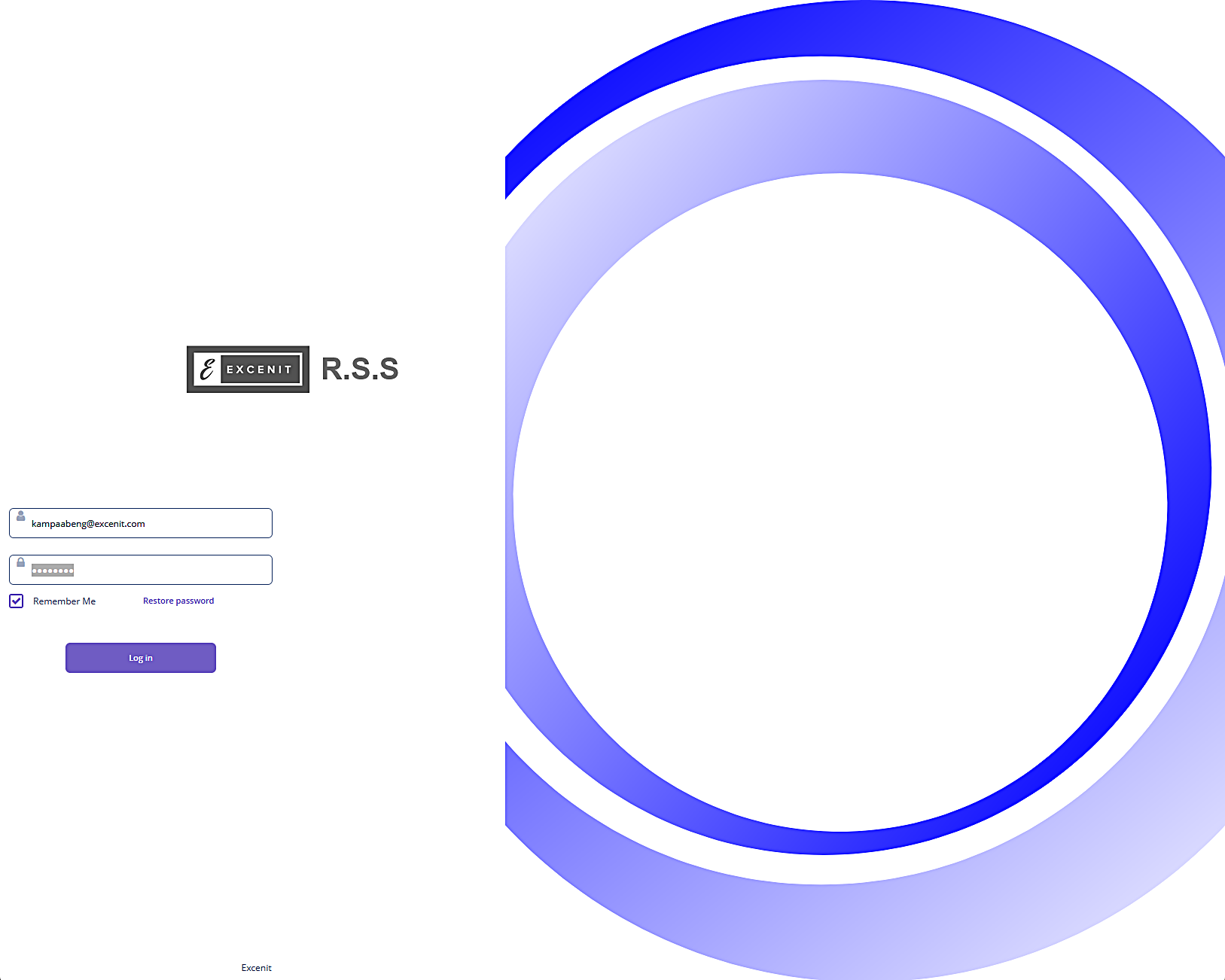
You can log into Excenit RSS using either username and password that was created on the system or single-sign on credentials. Check with your administrator for the correct information. If you have single-sign on such as Microsoft, you will use your email address and password to log in.
-
Enter username and password. If you are working from a private computer, check the Remember Me box to store your password. Click Log in or press enter to enter the system.
-
If your company uses single-sign on, you will have to enter the username and password of your single-sign on provider such as Microsoft Exchange email and password.
-
If the username/password combination is wrong, the following image appears:
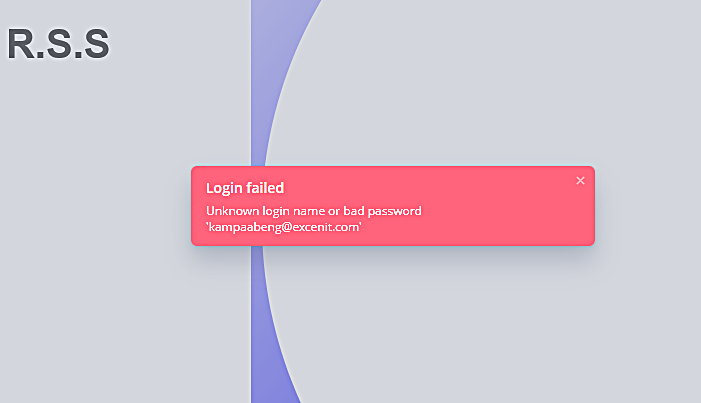
Enter correct credentials or reset your password. Click Reset Password or contact administrator to reset your password. There is more information on managing passwords in the "Managing Account" section.
Layout
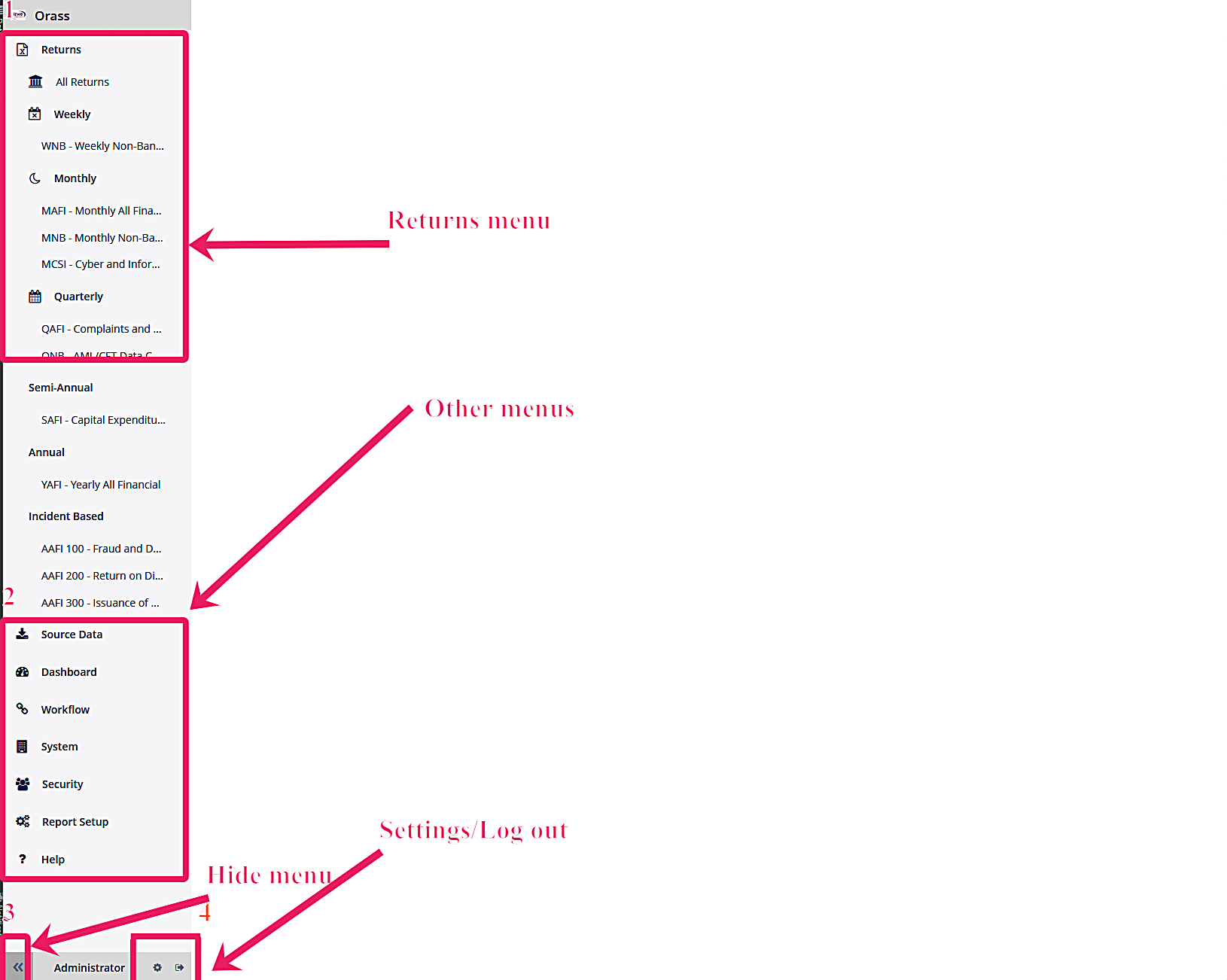
The image below shows the key sections of the home screen. Since Excenit RSS is strictly role-based, the menus on your screen will be different from the one below depending on your current role.
-
Returns menu This is main menu for managing returns. Returns are organized by submission frequency. Only returns that you have access to will be visible. For all the menus, click the parent item to hide or unhide the items.
-
Other menus These are the menus for other parts of the system such as managing the data warehouse/staging, the security, setup and others.
-
Hide menu bar You can create more working space by hiding the entire side menu. This button toggles the sidebar menu on or off. When off, you will have more screen space.
-
Settings/Log out The gears icon will open the settings screen. In the settings screen, you can customize the appearance of your workspace. The door icon will exit the system.
Customize Appearance
The default theme uses medium-sized fonts. This should work for most people, but it is possible to customize the settings.
Follow the steps below to customize the appearance.
-
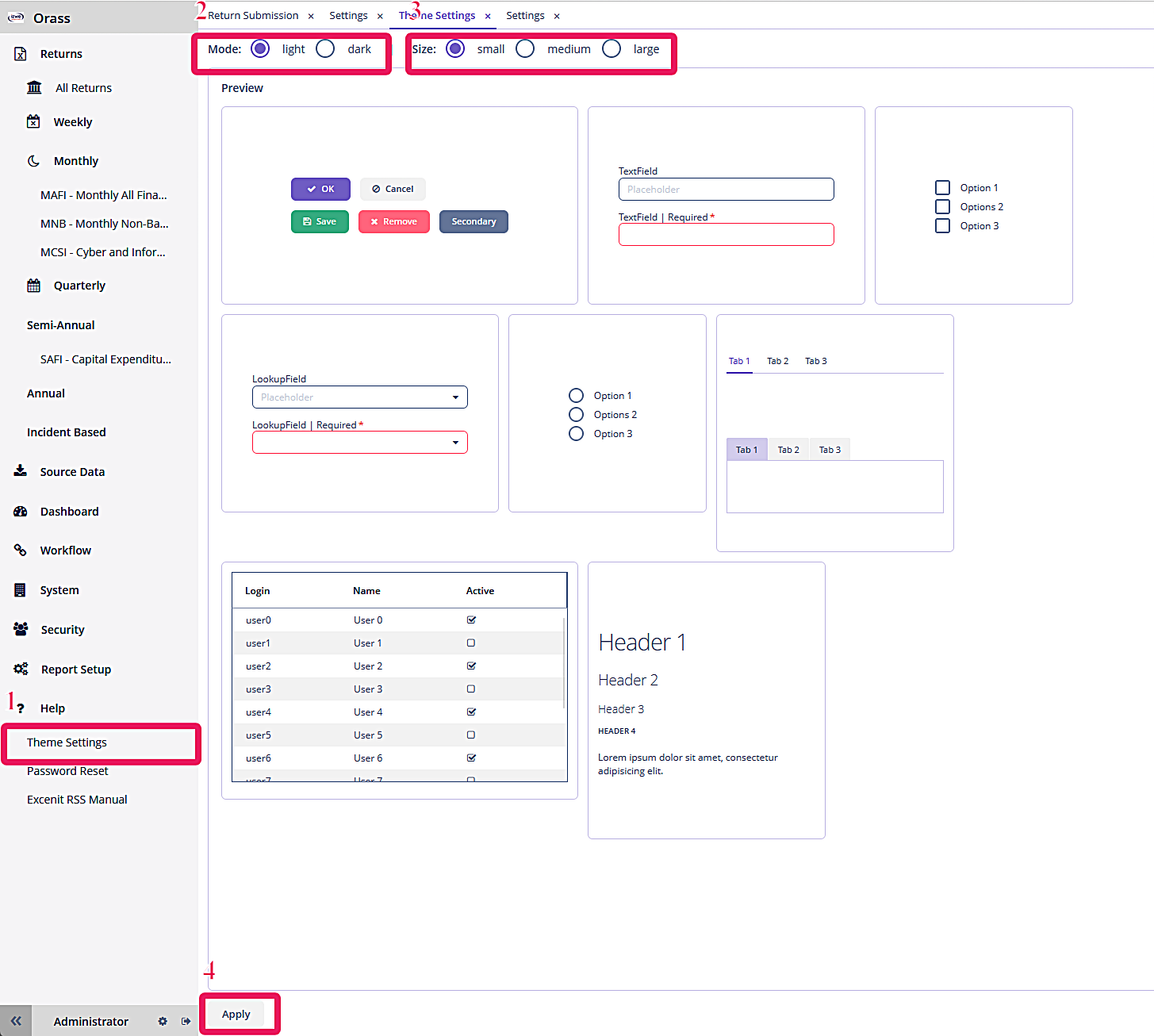
Go to Help → Theme Settings to open the Theme Settings window.
-
Go to Mode to select either light or dark mode.
-
Go to Size to select from three pre-defined sizes - small, medium, large. The Preview pane below show how the changes will appear in the rest of the application.
-
When satisfied with your options, remember to click Apply to save the changes.
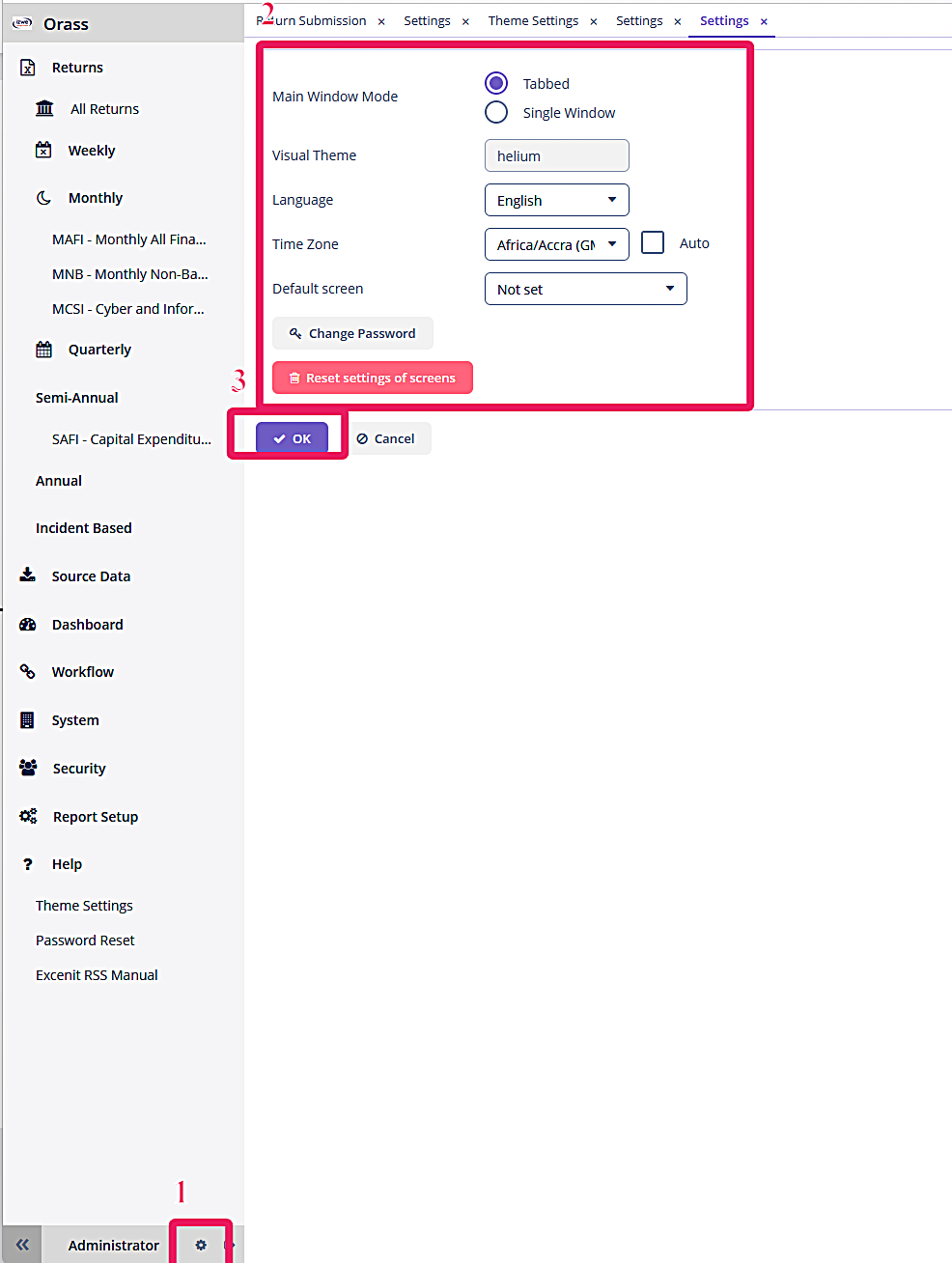
You can also customize other parts of the screen, including the language, time zone, and default screen.
-
Go to Settings icon at the bottom of the sidebar.
-
In the Settings page, choose from many options to customize.
-
Click OK to save changes and exit.