User Management
User Roles
Required Functional Roles
RSS requires users to be assigned functions.These are:
-
Report Manager - Owns and manages the reporting process,
-
Report Approver (CFO) - Approves returns before they are submitted to BoG, and
-
Admin - The administrator who manages the technical aspects of the system.
Each of these functions are mapped to specific user roles.RSS includes three default roles that map to these functions.
-
Report Manager - orass-report-manager
-
CFO - orass-report-approver
-
Admin - orass-system-admin
Other roles can be created as necessary. RSS uses a very fine-grained permission system. This means that permissions can be granted at the table, column, and even row levels. In addition, users can be given permissions to various sections of the screen.
Default and Pre-configured Roles
The default Report Manager role controls all Submission Packs("packs"). RSS also included pre-configured roles for other packs, including:
-
MAFI (orass-mafi-report-manager),
-
MFBK (orass-mfbk-report-manager), etc.
The pre-configured roles follow the naming convention — orass-XYZK-report-manager, where XYZK is the code identifier for the pack.
In addition, there are other specialized pre-configured roles, including orass-data-loader, who can manage data loading or API. Remember all these roles can be modified and new ones created. There are pre-configured to ensure RSS works out-of-the box.
Create User
Excenit RSS uses system-defined users or other directory protocol systems such as Microsoft Azure AD, or LDAP. Users from an external system such as Microsoft Azure AD must
-
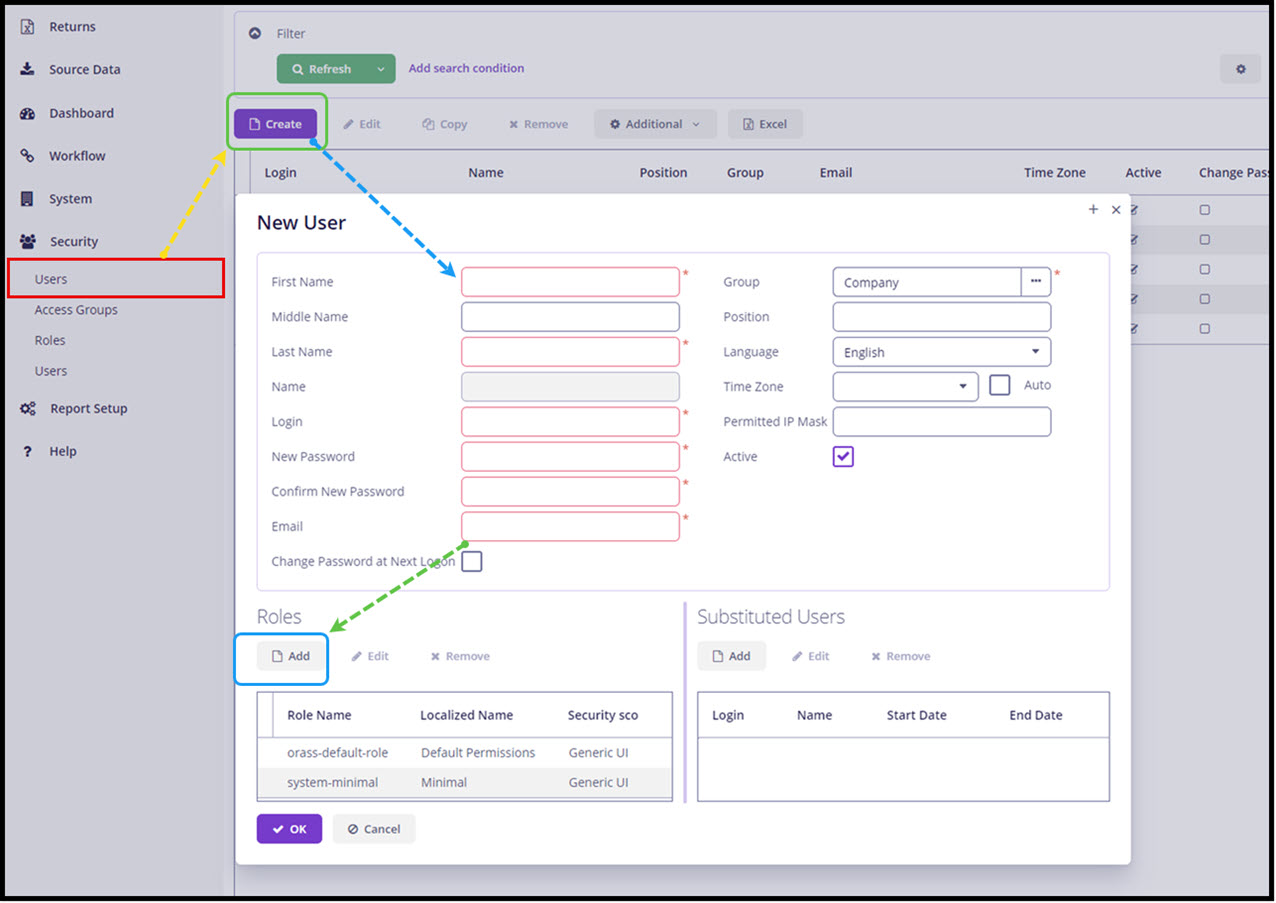
Navigate to Security→Users.
-
Click
Createto add a new user. -
Enter the user information. Required fields are highlighted in red.
-
You can enforce password change at next logon by checking the
Change Password at Next Logonbox. -
Assign the role to the user by clicking
Add' in the `Rolessection. See User Roles for more details on the types of roles available. A user can have multiple roles. However, the most permissive role will take precedence. Select the roles you want to assign the user from the list below. PressCtrlon your keyboard to select and assign multiple roles. -
You can impose additional security requirements on a user by restricting the IPs from which they can connect to the RSS system.
Filter the list roles by typing in the first few characters in the Name field.
|
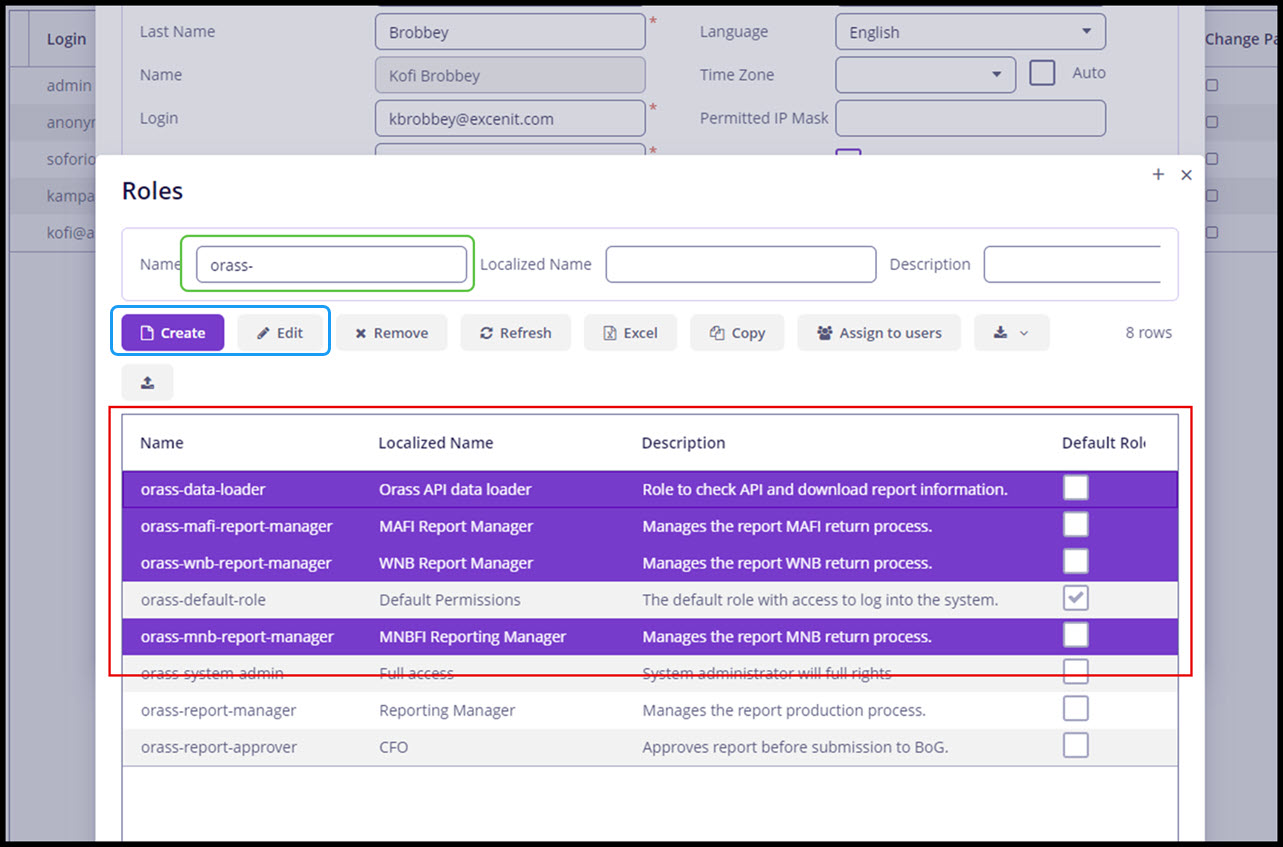
If a desired role isn’t available at the time of creating the user, one can be created by clicking the Create button.
Similarly, existing roles can be modified by clicking the Edit button or create a new role by copying an existing one.
Once a user is created, a notification will be sent to the email address created in the previous step. If password change is required, they must do so in accordance with the password complexity rules defined in Application Properties.
Manage User Roles
You can examine the "effective role" of a user, i.e., the resources a user can access. This is useful when troubleshooting access adn permission issues. To examine the effective role of a user, select the user from the Users screen and click the Additional button.
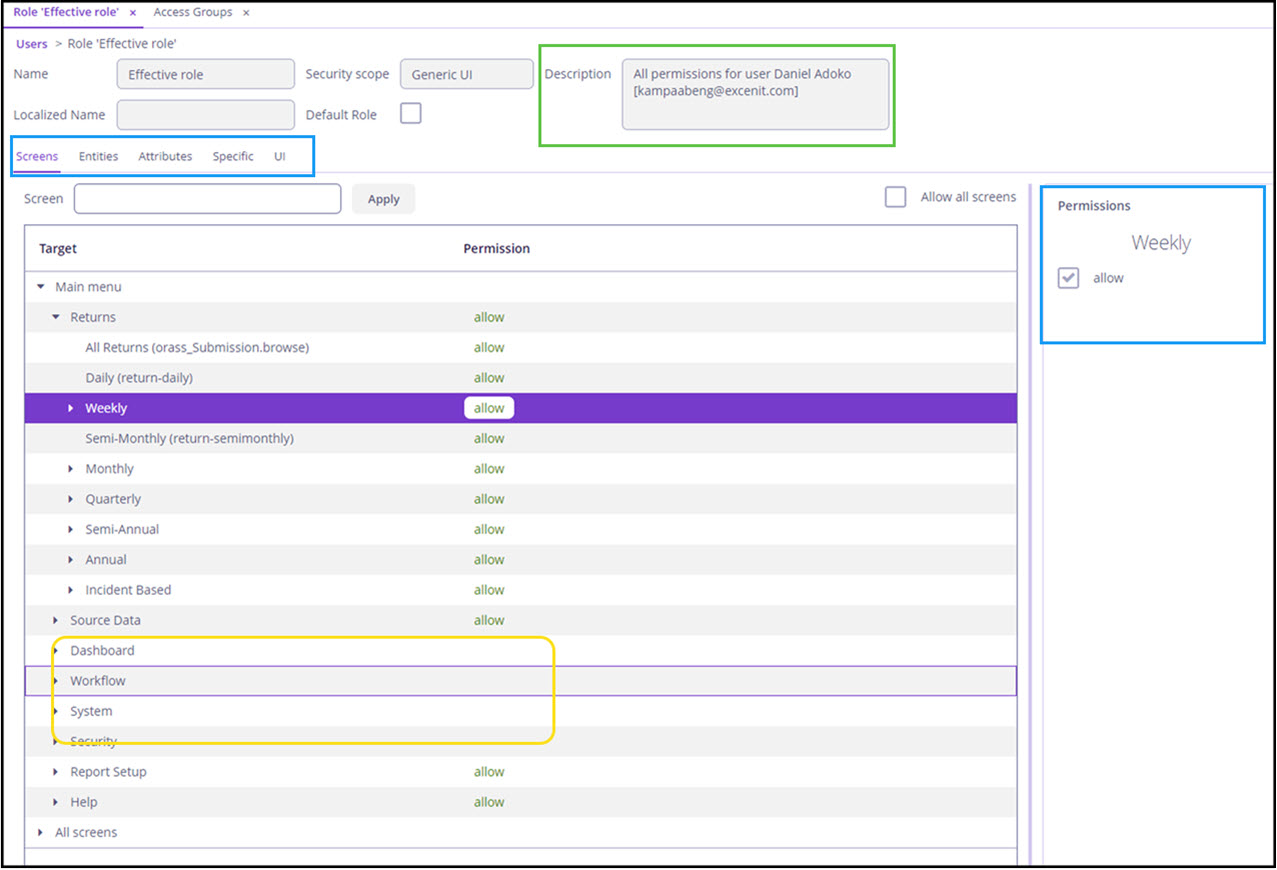
In the example above, the user Daniel Adoko has access to specific screens including Returns but has no access to the Dashboard, Workflow and System. Additional permissions or restrictions, which are not in the roles assigned to this user can be granted/imposed. For example, even though the user has access to the MAFI returns, for business reasons, this user isn’t permitted to download the returns. This restriction can be imposed through the UI tab of the Effective Role screen.
Advanced System Access
Excenit RSS provides a unique feature known as Access Groups, which allow users to be segregated manner. Consider a hypothetical bank, Ghana Freedom Bank Inc. that has multiple divisions responsible for specific reports with their own CFO and the data must only be visible to members of that division. With Excenit RSS, we can create an Access Group that corresponds to the daily forex returns. Returns created and submitted to BoG will only be visible to members of that group, in addition to all other assigned roles as described in User Roles.
The Access Group can also be used to capture data from other sources that are outside the core banking system but are needed for preparing reports, or subsidiaries that are separate entities but must supply data for reporting.
By default, all users are created under the Company group. Other groups can be created for several use-cases, include those outlined above.
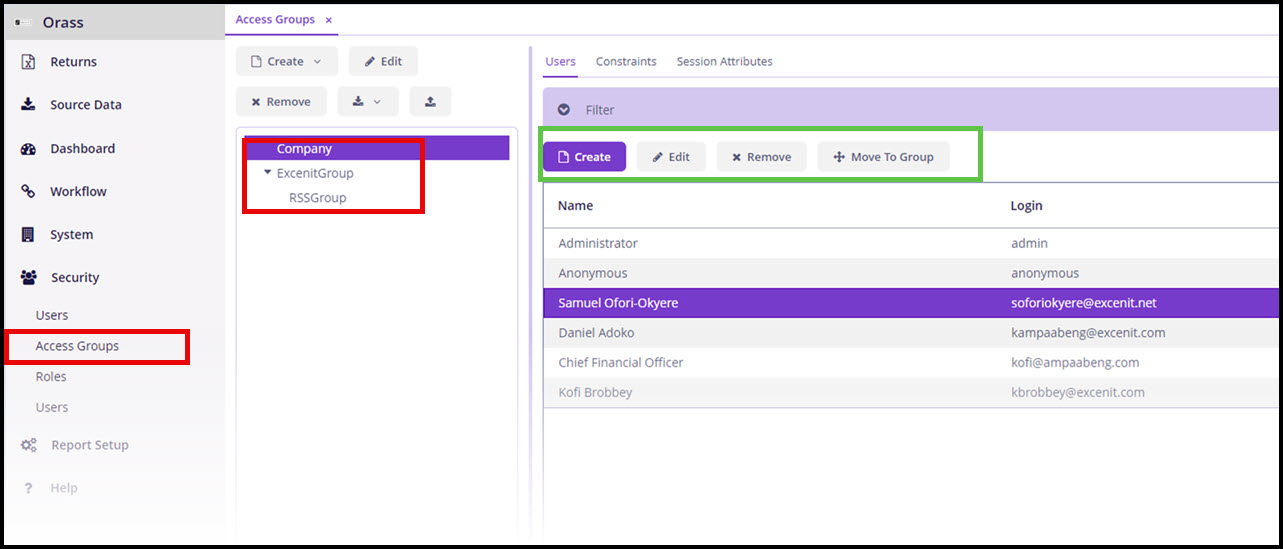
In addition to creating groups, uses can be moved across groups with simple clicks, specific constraints and restrictions can be defined for uses.